Welcome to WEAP's Website

WEAP is an initiative of the Stockholm Environment Institute.


About WEAP

Home
Why WEAP?
Features
What's New?
Sample Screens
Demonstration
Applications
Publications
History and Credits

Using WEAP
Download
Licensing
User Guide
Tutorial
Resources

User Forum
Discussions
Members List
Edit Profile

Additional Support

Training
Collaboration

About Us
SEI US Water Resources Program
Please Contact Us

 Environmental News
Interested in Energy?
Read about LEAP: SEI's software for energy planning.
   Spanish    French    Dutch    Russian    Chinese    Thai    Korean                           Join Now!      Log In

Recent Changes to WEAP

5/31/08, v.2.2052

  • New report: Reservoir evaporation
  • Paste multiple values into expressions: Paste a vector of annual or monthly values from Excel or other programs. Also, paste a volume-elevation array into the Volume-Elevation Curve tab for a reservoir.
  • VolumeToElevation and ElevationToVolume functions: New functions for expressions to convert between reservoir volume and elevation, using the Volume-Elevation curve data. Here is an example that uses elevation data (in feet) to set the Top of Conservation zone data: ElevationToVolume(MonthlyValues(May, 625.0, Jun, 625.0, Jul, 610.0, Aug, 610.0, Sep, 630.0, Oct, 630.0, Nov, 625.0)) Assumes the elevation and volume units are those as set for reservoirs under General, Units, Reservoir.
  • Reduced memory use: WEAP now uses less memory (RAM) during calculations, especially on larger datasets.
  • Smaller results files: automatic packing of results file will save disk space and speed viewing of results.
  • Individual result files: In order to accommodate very large models, the results file are now split into many smaller files. This should allow larger models to be calculated, as well as faster access to result tables and charts in the Results View.
  • API LoadOverview: Using the API, use WEAP.LoadOverview(OverviewName) to load a previously saved overview.
  • API ExportResults to Excel: ExportResults can save to either a CSV or Excel file, depending on the extension for the file name you give. E.g., WEAP.ExportResults(C:\Overview.xls) or WEAP.ExportResults(C:\Groundwater.csv). Also, you can now export results from the Overview View.
  • Handles PARAMETERs in MODFLOW files: WEAP can now handle PARAMETERs, including time-varying parameters (with instances), for the following MODFLOW packages: WEL, DRN, RIV, RCH.
  • Handles OPEN/CLOSE and EXTERNAL in MODFLOW files: WEAP can now handle OPEN/CLOSE and EXTERNAL in MODFLOW input files, in any format (FREE, fixed or BINARY).
  • Terminology change: "revenue" broadened to "benefit." Benefits can include revenues, or other positive impacts, such as the value of ecosystem services.

3/14/08, v. 2.2034

  • Terminology: Renamed "Leaf Area Index (LAI)" as "Runoff Resistance Factor." Runoff Resistance Factor incorporates factors such as LAI and land slope to determine surface runoff. Higher values of Runoff Resistance Factor lead to lower values of runoff.
  • Fixed bug with startup year

3/7/08, v. 2.2033

  • Fixed bug with PrevTSValue: There was a problem with complex PrevTSValue expressions.

3/5/08, v. 2.2032

  • Create MODFLOW linkage shape file in WEAP: Using parameters from the MODFLOW discretization file and user-supplied parameters, WEAP can create a GIS shape file that can be used to link a WEAP model to a MODFLOW model. This means that separate GIS software, such as ArcMap, is not required to link MODFLOW to WEAP. Go to General, MODFLOW Link. Click button "Choose shape file that...." Choose < Create new shape file > under "Background shape file with MODFLOW linkage information" WEAP can handle irregular MODFLOW grids (where the rows or column widths vary). Also, it can handle either UTM and latitude/longitude shape files.
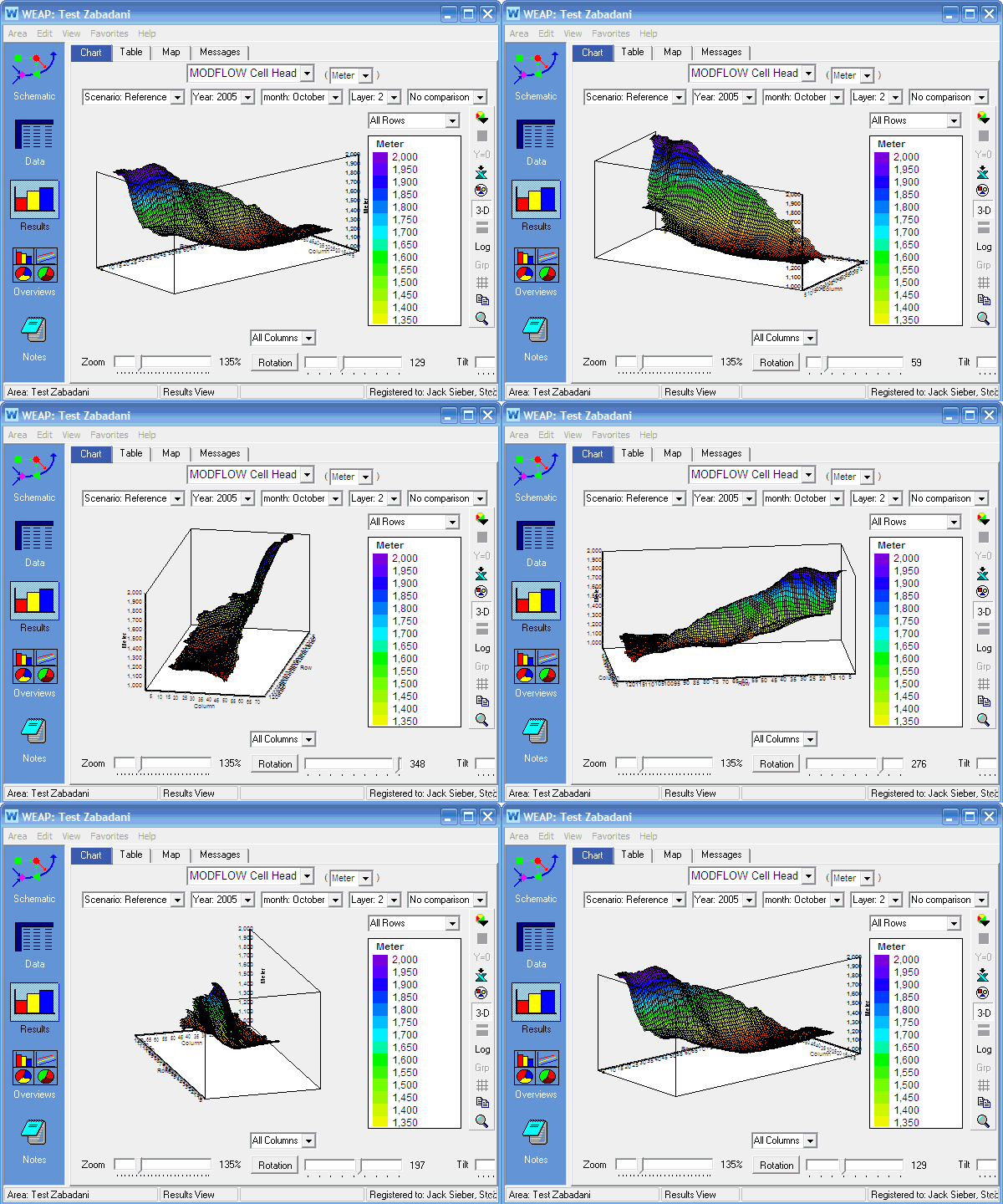
  • Support of confined and multi-aquifer systems (MODFLOW): On the "Link to MODFLOW" screen, click the "Define Aquifers" button to specify which MODFLOW layers should be grouped into which aquifers. In the Results View, there are two new reports in the MODFLOW section: "Groundwater Inflows and Outflows by Layer" (available only if the MODFLOW model has more than one layer) and "Groundwater Inflows and Outflows by Aquifer" (available only if the MODFLOW model has more than one layer and you have created more than one aquifer).

  • Access to MODFLOW results in expressions: To access MODFLOW results for individual cells, use PrevTsValue(MODFLOWVariableName[layer, row, column], ...), for example, PrevTSValue(Cell Head[1,57,30], 1, 12, 2) will give the minimum value of the cell head elevation for layer 1, row 57, column 30 over the previous twelve months. In API, use WEAP.ResultValue(MODFLOWVariableName[layer, row, column], ...), for example, WEAP.ResultValue("Cell Head[1, 57, 30]", 2005, 1)
  • Display results in units of flow (e.g., CFS): For any results in the Results View that use volume units, such as cubic meters or acre feet (e.g., Streamflow, Supply Requirement), the results can now be display also in flow units (e.g., cubic meters per second or cubic feet per second).
  • Catchment results in mm: See catchment results (e.g., Land Class Inflows and Outflows) in terms of depth, such as in mm, in addition to volume (cubic meters) and flow (cubic meters per second) units.
  • Improved inflows and outflows reports: these reports (such as Groundwater Inflows and Outflows) now have more details on flows; choose "Selected Sources and Destinations" above the legend to choose a subset to display
  • Climate data can vary by land use: One can choose whether all land use branches within a catchment will have the same climate data, or whether each branch can have different climate data. This second option might be necessary if there is a large variation in the elevation among different land uses within a catchment. Alternatively, the catchment could be divided into several different catchment nodes according to elevation, so that the climate within each catchment did not vary by land use. Go to General, Basic Parameters to make the choice.
  • Cloudiness fraction for catchments: New variable "Cloudiness fraction" for catchments and river reaches (on which river water temperature is calculated), to help refine the calculation of net solar radiation.
  • Select branches in Results View: Now you can choose a subset of branches to display in the Results View.
  • New API functions BranchExists and VariableExists: Test if a branch or variable exists from the API, e.g., IF WEAP.BranchExists("\Demand Sites\Big City") THEN ..., or IF WEAP.Branch("\Demand Sites and Catchments\Upper Watershed").VariableExists("Wind") THEN ...
  • New API property Branch.Variable: Can be used to refer to a named variable for a branch, e.g., WEAP.Branch("\Demand Sites\South City").Variable("Consumption").Expression = 30
  • Incremental calculation in the API: The API function "Calculate" now takes optional parameters to specify how far to calculate. E.g., WEAP.Calculate(2005, 6) will stop calculations at the 6th timestep of 2005.
  • Speed up for API: Making WEAP not visible (WEAP.Visible = False) now results in faster calculations when using the API.
  • Fixed bug in startup year: Scenario were incorrectly inheriting the "Startup year" value from their parent scenario.

11/27/07, v. 2.2009

  • MODFLOW Tutorial: New Tutorial chapter about linking WEAP to MODFLOW, with matching dataset.
  • Individual result values in status bar: Move the mouse over any line or bar in a chart (in the Data View, Results View or Overview View) and its value will be displayed in the WEAP status bar below. (No need to click the mouse.) See a short video demonstration (with sound).
  • Schematic elements named in Status bar: Move the mouse over any WEAP element (e.g., Demand Site, River, Reservoir) in the Schematic View and its name will be displayed in the WEAP status bar below. (No need to click the mouse.)
  • Zoom and pan result charts: To zoom in on charts in the Data and Results Views, hold down the control key and click and drag a rectangle on the chart from upper left to lower right. To zoom back out again, click and drag from lower right to upper left. When zoomed in, hold the shift key and click and drag to pan the chart. These shortcut keys--control-drag to zoom, shift-drag to pan--also work on the Schematic.
  • Easily change labels for background layers: Right click on a background layer name (e.g., Country) and choose the label to use on the "Set label to" menu.
  • Edit shape file data: Double click the background layer name in the Schematic to edit the values in its attribute table. See a short video demonstration (with sound).

10/31/07, v. 2.2003

  • Circular reference error: Improved diagnostic error reporting for circular references
  • New expression constants: In addition to the constants (which can be used in expressions) Y, Year, PrevYear, Month, TS, and Days, new constants have been added: DaysBefore, JulianDaysBefore and TotalDaysBefore

10/25/07, v. 2.2001

  • Trig functions: Added arccos, arcsin and arctan

9/21/07, v. 2.2

  • Major new version of WEAP released: highlights include:
  • Link to MODFLOW: Link WEAP's groundwater nodes to one or more MODFLOW groundwater cells for detailed modeling of groundwater.
  • Link to QUAL2K: Calculate instream water quality using the US EPA model QUAL2K. Constituents modeled include: Ammonia, nitrate, organic and inorganic phosphorous, algae, sediment, pH and pathogens.
  • Application Programming Interface (API): Run WEAP from other programs (e.g., Excel via VBA), programming languages (e.g., Visual Basic, C) or scripts (e.g., Visual Basic Script (VB script), JavaScript, Perl, Python) can control WEAP directly--changing data values, calculating results, and exporting them to text files or Excel spreadsheets. Can be used to automatic sensitivity analysis or calibration. Compatible with Parameter Estimation tool (PEST), for automatic calibration.
  • Call DLL functions from WEAP expressions: To call a dll function, use the following syntax: Call( DllFileName ! DllFunctionName, parameter1, parameter2, ...)
  • Refer to result values in data expressions: Using PrevTSValue function, results from the previous timesteps can provide feedback for data expressions. Results include: Demand Site: Supply Requirement, Supplied, Coverage, Unmet Demand, Reliability; Transmission Link: Flow; River nodes and reaches: Streamflow; Reservoir: Storage Volume, Storage Elevation, Hydropower; Flow Requirement: Requirement, Requiremend Delivered, Requirement Coverage; Groundwater: Storage; Return Flow: Flow
  • Rice paddy module: Track requirements for and hydrological effects of ponding / flooding in rice cultivation (and wetlands).
  • Infiltration basins and retention ponds: Seepage losses from reservoirs can be significant, particularly in lakes and unlined reservoirs. To model these losses, specify the groundwater node and flow to it for each timestep. Net gains from groundwater to the reservoir should be entered as negative numbers. You can also model infiltration basins and retention ponds, which can be used for artificial recharge of aquifers.
  • Tiered water pricing: Added function BlockRate for tiered pricing structure of demand site customer water charges.
  • Combined sewer overflows (CSO): Model CSOs by routing a catchment's stormwater runoff to a wastewater treatment plant, which can overflow if its maximum treatment capacity is exceeded.
  • Key Assumptions in Results View: Display one or more user-defined variables from Key Assumptions in the Results View.
  • Return flow gain from groundwater: Infiltration from groundwater into the return flow link, typically via cracked pipes, can lead to sewer overflows and increased wastewater treatment costs.
  • Rivers can now flow into groundwater nodes: drag the endpoint of a river and drop it on top of an groundwater node to connect them. (WEAP will ask you if you want to connect them.) Once connected, any water that flows out of the last river reach will flow into the groundwater node.
  • Transmission and return flow link losses to groundwater: transmission links and return flow links have two variables for losses: "Loss from System" and "Loss to Groundwater," each entered as a percent of flow through the link. Loss from system will disappear, whereas Loss to Groundwater will flow into the named groundwater node.
  • Units shown for variable references: WEAP now shows the unit, and allows scale and unit conversions, when referring to variables in data expressions. This should greatly reduce the incidence of conversion errors.
  • Faster calculations: Calculations take less time now to complete, especially on computers with at least 512 MB RAM.
  • Scenario comparison: In Results View, see the difference between one scenario and one or more other scenarios.
  • Multiline epxressions: When editing expressions in the Expression Builder, you can add line breaks to enhance readability for complex expressions.
  • Renormalize monthly data: The Monthly Time Series Wizard now has a "Renormalize" option, to proportionally change all values so that they sum to 100%.
  • Wastewater Treatment Plant Overflow Report: Overflow is defined as inflow to a wastewater treatment plant that exceeds its capacity.
  • View input data in Results View: Access all data inputs on Result View charts, tables and maps.
  • Change Y-axis origin: Whereas previously, the y-axis of all graphs always started at 0, now there is an option to use the minimum value as the origin. This will exaggerate changes on the graph--thus making it easier to see differences, but potentially misleading. Click the "Y=0" button on the toolbar to the right of the graph to toggle the Y-axis origin.
  • Language Translations: full or partial translations into Chinese, Korean, French, Spanish, Portuguese, Arabic, Farsi, Russian and Thai.

8/5/05, v. 2.0016

  • Financial planning module: Attach revenues, capital costs and operating costs to individual elements (demand sites, transmission links, return flow links, wastewater treatment plants, groundwater sources, reservoirs, etc.), either as fixed annual costs or as costs per unit of water. Other uncategorized costs can be entered as "other system costs" (capital, operating and revenue). All of these annual costs could vary by year or by scenario. Use LoanPayment function to calculate loan payments on capital costs. Results include net costs, average cost of supplied water, and net present value.
  • Water quality inflow constraints: Set optional constraints on maximum concentration of inflow to a demand site, from all sources mixed.
  • Water quality gauge data: Enter data for water quality concentrations at various points in the river. WEAP will display a report comparing these data with model results. This ability is similar to the current option for entering water flow data in streamflow gauges, for reporting.

  • Disaggregated pollution generation: Data on demand site pollution generation, either by intensity or concentration, can now be entered at any level of disaggregation under the demand site level on the tree.
  • Running count of model elements: The legend on the Schematic View shows the total number of each element defined, e.g., if 5 demand sites exist, it will read Demand Site (5).
  • Save small models in evaluation version: The unregistered evaluation version of WEAP can now save small models--up to 6 nodes and 3 rivers.

6/8/05, v. 2.0005

  • New version of WEAP released: highlights include:
  • Hydrologic models: Using data on climate and land use, WEAP can model runoff, infiltration, baseflow, evapotranspiration, irrigation requirements and crop yields from catchments.
  • Two hydrologic models are available: a simplified model using the FAO crop requirements method, and a more detailed model which tracks soil moisture in two soil layers via a lumped-parameter hydrologic representation.
  • Surface water/groundwater interactions: Simulate flows between surface water and groundwater, based on their head difference and various aquifer parameters.
  • Instream water quality: Models for water temperature, BOD, DO, conservative substances (e.g., salt) and non-conservative substances (which follow first-order exponential decay) in river reaches.
  • Wastewater reuse: Wastewater return flows from demand sites and wastewater treatment plants can be used directly by other demand sites.
  • View results on the map: Results from one or more variables (e.g., demand, streamflow, water quality, reservoir storage) can be displayed on the map, both in numerical form and as varying widths/sizes of elements (e.g., demand sites, reservoir, river reach lines).
  • Automatic data backup: WEAP maintains multiple versions of each dataset (as it changes over time), which can be useful in case of data corruption or a desire to undo many changes.
  • Multilingual: English, French and Korean, with partial translations into Chinese, Spanish and Portuguese.

4/8/05, v. 1.0435

  • Area Save As: Save open area, along with any as yet unsaved changes, to a new area. Main menu: Area, Save As...
  • Automatic versioning of areas: WEAP will automatically keep multiple versions of each area's data so that you can revert to a previous version.
  • Create milestone copy: Save a version of the area (with an optional comment). Main menu: Area, Save Version...
  • Revert to previous version: Discard the current version of an area's data and replace with a previously saved version. Can be used to easily undo all changes made since last save. Main menu: Area, Revert to Version

4/7/05, v. 1.0434

  • Exclude results: When backing up or emailing an area from Manage Areas, there is now the option to exclude the result files to save space.

3/10/05, v. 1.0418

  • Batch export and import of data expressions to/from excel: After exporting to workbook, you can modify the expressions and then import them back into WEAP. With autofilter turned on, Excel becomes an excellent way to view the expressions, perhaps better than the text Data Report.



2/3/05, v. 1.0404

  • Map multiple results: Multiple variables can be mapped at once in Results View (on the Map tab)

1/28/05, v. 1.04

  • Wastewater reuse: (transmission link from one demand site to another demand site, or from a wastewater treatment plant to a demand site) This change necessitates two new variables--Demand Site Consumption and Wastewater Treatment Plant Consumption--and a redefinition of return link routing fractions (now they are as a fraction of outflow, not a fraction of inflow)
  • Flow duration curve: aka exceedance graphs
  • View "data" variables in the results view: e.g., Reservoir top of conservation pool
  • User-defined results tables: In the Overview View, you can now see all the numbers behind the graphs
  • View results on the map: In the Results View, there is now a map tab. Move the slider below the map to animate it over time. Cick the chart icon on the right to see the variable graphed below.

11/11/04, v. 1.0351

  • Catchment runoff symbol: a new symbol on the legend for catchment runoff--blue dotted line, instead of a red return flow link.
  • Specify catchment inflow: You can specify on the General Info for a catchment which river it flows into, whether that inflow represents the headflow for that river, which groundwater node (if any) receives recharge from the catchment, and whether it includes any irrigated areas.
  • Catchment runoff as headflow: If a catchment is the headflow for a river, you cannot also enter data for that river's headflow. This prevents double counting.

4/16/04, v. 1.0342

  • Read from file with dates: You may specify data dates in files to be read using ReadFromFile using mm/dd/yyyy syntax, in addition to having the year be in column 1 and the time step in column 2. (This only works if your timestep is monthly or daily.)

3/19/04, v. 1.0327

  • Turn off automatic calculation: In the Data View, go to the Main Menu: Edit, Automatic Calculation to turn on or off calculation and dispaly of results in the Data View (does not affect Results View). If Auto Calc is off, hit F9 to do a calculation (this will not turn auto calc back on).

1/23/04, v. 1.0304

  • Graph river results according to distance downstream: In results, all river reports (e.g., streamflow, gauges, surface water quality) can display the results along the X axis spaced porportionally to their distance along the river. Choose "Nodes and Reaches" for the X axis dimension, then check off "Represent true relative distance?"

1/2/04, v. 1.031

  • River Reach Length report: in Results, choose: Supply and Resources, River, Reach Length. Reach Length is used in calculating temperature, BOD, DO, and other water quality constituents that decay

12/31/03, v. 1.0299

  • Order branches alphabetically: When sorting branches in the tree (right-click on a branch), you can choose "Sort by Name (all levels below)" or "Sort by Name (just one level below)". For example, to order the list of demand sites alphabetically, but leave each demand site's sector branches unsorted, right-click on "Demands Sites" branch and choose "Sort by Name (just one level below)".

10/28/03, v. 1.0292

  • Reservoir priorities: priorities (on order of filling and releases) can now change over time, similar to demand sites and flow requirements.

9/23/03, v. 1.0285

  • Branches flash on map: In Data View, when you click on a branch in the tree, the corresponding object in the schematic will flash on the inset map (below the tree).

8/25/03, v. 1.028

  • Reservoir Elevation report

7/22/03, v. 1.0264

  • Mouse wheel: Use mouse wheel to zoom in and out of schematic.

7/3/03, v. 1.0257

  • Help button for data variables: Click the "Help" button (next to the description of the variable) for help on current data variable.

6/27/03, v. 10255

  • Enter monthly demand: Option to enter monthly demand directly, rather than enter annual demand and monthly variation. Choose "Specify Monthly Demand" for the Method on the Advanced button in the Data View. You may use ReadFromFile function (see description below) to read in monthly demands from a file for multiple years.

5/30/03, v. 1.0234

  • Land class area report: New report that details area by catchment and land class. Choose Levels = 2 to see land class detail. Then check the "Group?" box to see subtotals by land class.

5/23/03, v. 1.0231

  • Patterned charts: charts with more than twenty items in the legend use patterns to differentiate the bars.
  • Restore area from FTP site: Go to Manage Areas, click the Restore button, then enter your ftp site in the "File Name" box to browse for a WEAP area file to restore. For example, go to ftp://sei-us.org/WEAP/Data/WEAPAreas and you should be able to see Weaping River Basin.zip

4/7/03, v. 1.0224

  • New Flow Requirements reports: three new flow requirements reports have been added: Instream Flow Requirement, Instream Flow Requirement Delivered, and Unmet Instream Flow Requirement. They can be found grouped with the other Demand reports. (Previously, the Flow Requirement Covevage report was under Supply and Resources, River.)

4/3/03, v. 1.0223

  • Fixed "Table is full" error: increased the maximum size of the results file from 128MB to 1 GB.

3/31/03, v. 1.0221

  • New Manage Areas: greatly enhanced the "Manage Areas" screen.
  • Minimal diversion: Modified behavior of diversions, so that WEAP will not divert more than is requested on the diversion. (Essentially, there is now a priority 100 (i.e., last) iteration in which the flows diverted from rivers into diversions are minimized (subject to the constraints of how much needs to be diverted, based on instream flow requirements and offstream demands on the diversions).)

  • Temperature and Observed Precip reports: Results View, Land Use, Yates Runoff Method, Temperature and Observed Precipitation. Look at monthly averages to compare climate change.
  • Flow from Groundwater into River report: For flows surface water-groundwater interactions modeled, see Supply and Resources, Groundwater, Flow from Groundwater into River. (Negative values represent flows from river into groundwater.)
  • Monthly averages: When viewing result charts with time along the x-axis, click the "Monthly Average?" checkbox above the chart to see the average for each month.
  • Interrupt calculations: Calculations can be stopped via a Cancel button.
  • Changes logged: The text file Changes.txt (stored in the subdirectory for a WEAP area) has a record of every change made to data, in the order the changes were made, along with who made the change.
  • User login: Users enter their initials when WEAP starts, so that changes to data can be associated with the person who made them.

1/7/03, 1.0177

  • User-defined units: To add new units, go to the main menu and select General, Units, then click the "Units Definitions" button.
  • Statistics: When viewing tables of results in the Results View, click the "Stat" button on the right to see the minimum, maximum, average, standard deviation and root mean square.
  • Browse map data: To view the data associated with a GIS layer (*.shp files), right-click on the layer name, then select Edit to go to the Edit Layer window. Click the "Browse Data" button to see data for all map elements, or click on an element in the map to see its data in the grid to the left of the map.
  • Monthly variation of demand: Each branch within a demand site can have a different monthly variation. On the main menu, select General, Basic Parameters.
  • Streamflow gauges: Use the streamflow gauge objects to facilitate comparing calculated and observed streamflow. On the schematic, place a gauge on a river. Edit its data to specify observed flow, typically using the ReadFromFile function. In results, look at the Supply and Resources, River, Streamflow Relative to Gauge report to compare.
  • Variable Time Step: The time step can be set anywhere from one day to 365 days. Every year and scenario in an area must have the same time step. Go to the main menu and select General, Years and Time Steps.
  • Variable water year start month: The water year can start on any month. Go to the main menu and select General, Years and Time Steps.
  • Group small results into "All Others": If there are more than 12 items in the results legend, you can click the "Grp" button on the right to group the smallest items together.
  • Turn off individual scenarios: To show or hide results for individual Scenarios, go to the menu main and select Area, Manage Scenarios, then check or uncheck "Show Results for Scenario" for each scenario. If this box is unchecked, then WEAP will not calculate results for that scenario.
  • ReadFromFile function: Use the expression ReadFromFile(FileName, ColumnNumber) to import monthly or annual data. The file should be an ASCII, comma separated value file, with the year in the first column, month in the second column (for monthly data), then one or more data columns. In the ReadFromFile function, the first data column is ColumnNumber = 1.
  • Annual totals: In the Results View, you can sum monthly results to see Annual Totals--check the "Annual Total" box in the chart subtitle (Years must be selected for the X-axis).
  • Disaggregated Demand results: On the Water Demand and Supply Requirement reports, use the "Levels" button (located underneath the report title) to show more or less detail. For example, on Weaping River Basin results, choose "All Branches" for the legend. Level 1 shows demand for each demand site; Level 2 disaggregates demand by agricultural county and crop type (Agriculture West), industrial water use (Industry East), irrigation technology (Agriculture North), and single and multi family (South City). When Levels is greater than 1, a "Group?" checkbox appears, that will group together branches with the same name. Set Levels = 3 and check Group?, to see that Flood Irrigation consumes nearly 50% of the total Weaping River Basin demand in the Current Accounts.
  • Wastewater Treatment Plant capacity: Wastewater Treatment Plants can have a maximum processing daily capacity.
  • Save or print schematic as graphic: The Schematic can be copied to the Windows clipboard, for pasting into Word or other applications. In the Schematic View, go to the menu main and select Schematic, Copy Schematic to clipboard.
  • Reservoir priorities: Reservoir can be assigned supply priorities, which are used to determine the order in which they are filled. They default to 99--the lowest priority.
  • Data Report: A "Data Report" lists all data for the active scenario. In Data View, click "Data Report" button in upper right corner of screen.

  • NEXT: Sample Screens