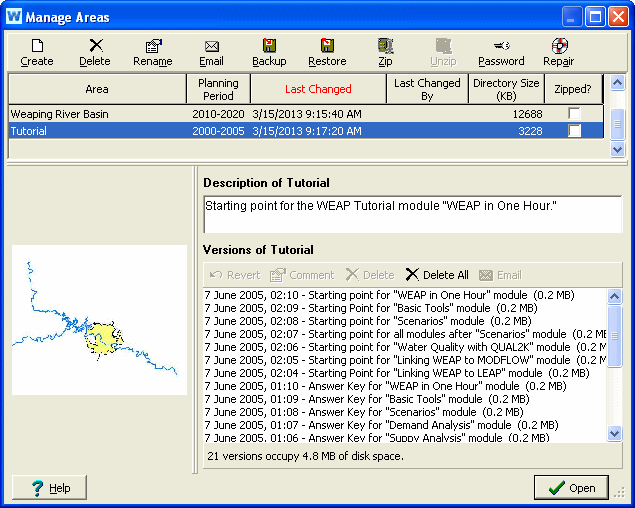
Use the Manage Areas screen, to create, delete, and organize the data sets ("Areas") on your computer. The Manage Area screen is divided into four panes. The table in the top pane shows the areas installed on your computer, along with various details about each area (planning period, when and by whom it was last changed, directory size, and whether it is currently "zipped"). You may click on the column titles to sort the table by that column. The title for the currently sorted column will be red. For example, click on "Area" to order the areas alphabetically; click on "Last Changed" to sort chronologically, with the most recent areas at the bottom; click on "Directory Size" to sort by file size, with the areas occupying the most disk space at the bottom..
The lower three panes display information for the area currently highlighted in the table: the area's Schematic on the left, an overall description of the area in the upper right (which can be edited), and the list of previous versions of the area in the lower right (more on this below).
The toolbar at the top gives access to a variety of options for managing areas:
 Create: Use this option to create a new Area data
set. The new area can either be blank or a copy of an existing Area.
Create: Use this option to create a new Area data
set. The new area can either be blank or a copy of an existing Area.
 Delete: Use this option to delete the highlighted
area. NB: deleted areas are permanently deleted from your hard disk, and
unless previously backed up, cannot be restored.
Delete: Use this option to delete the highlighted
area. NB: deleted areas are permanently deleted from your hard disk, and
unless previously backed up, cannot be restored.
 Rename: Use this option to change the name of the
highlighted area (and the subdirectory in which it is stored).
Rename: Use this option to change the name of the
highlighted area (and the subdirectory in which it is stored).
 Email: Use this option to send the highlighted area
as an email attachment. WEAP will automatically archive the data set into
a single file (with the file extension .WEAP) and then attach the file
to an email message. You can choose to exclude the results files to reduce
the file size. You
can also choose to include selected previous versions. However,
you will not be able to send the area if the file is larger than 30 MB.
Note: The
.WEAP file is a special format recognized by WEAP -- your recipient can
simply double-click the .WEAP file attachment and WEAP will automatically
load it as a new dataset.
Email: Use this option to send the highlighted area
as an email attachment. WEAP will automatically archive the data set into
a single file (with the file extension .WEAP) and then attach the file
to an email message. You can choose to exclude the results files to reduce
the file size. You
can also choose to include selected previous versions. However,
you will not be able to send the area if the file is larger than 30 MB.
Note: The
.WEAP file is a special format recognized by WEAP -- your recipient can
simply double-click the .WEAP file attachment and WEAP will automatically
load it as a new dataset.
 Backup: Use this option to make a backup copy of the
highlighted area. The area will first be archived into a single file (with
the file extension .WEAP). You can choose to exclude the results files
to reduce the file size. You
can also choose to include selected previous versions. You
can backup to any drive or folder on your PC or on a local area network.
Backup: Use this option to make a backup copy of the
highlighted area. The area will first be archived into a single file (with
the file extension .WEAP). You can choose to exclude the results files
to reduce the file size. You
can also choose to include selected previous versions. You
can backup to any drive or folder on your PC or on a local area network.
 Restore: Use
this option to restore a previously backed up data set, or to load an
area sent to you by another person. You will be prompted to select the
name of a file (.zip or .WEAP). WEAP will check the file to ensure that
it is a valid WEAP Area data set. Tip: You can also restore a file from
an FTP site -- just enter the FTP site in the "File Name" box
to browse for a WEAP file to restore, e.g., ftp://sei-us.org/WEAP/Data.
If the
file includes previous versions, they will be restored also.
Restore: Use
this option to restore a previously backed up data set, or to load an
area sent to you by another person. You will be prompted to select the
name of a file (.zip or .WEAP). WEAP will check the file to ensure that
it is a valid WEAP Area data set. Tip: You can also restore a file from
an FTP site -- just enter the FTP site in the "File Name" box
to browse for a WEAP file to restore, e.g., ftp://sei-us.org/WEAP/Data.
If the
file includes previous versions, they will be restored also.
 Zip: Use this option to compress the highlighted area
in order to save disk space (it will automatically expand to normal size
when next selected from the Main Menu: Area, Open). Typically, you would
only use this for inactive areas. Note:
If you Email or Backup an area that is currently zipped, you will not
have the option to exclude results or include previous versions.
Zip: Use this option to compress the highlighted area
in order to save disk space (it will automatically expand to normal size
when next selected from the Main Menu: Area, Open). Typically, you would
only use this for inactive areas. Note:
If you Email or Backup an area that is currently zipped, you will not
have the option to exclude results or include previous versions.
Unzip: Use this option to uncompress the highlighted
area. Since a compressed area is automatically uncompressed when it is
next selected (Main Menu: Area, Open), you do not normally need to unzip
it here in Manage Areas.
 Password:
Use this option to add, change or delete the password for protecting access
to an area. If an area already has a password, you will be prompted to
enter the current password before you can enter a new password. Note:
for password-protected areas, you must first enter the password before
you can copy, rename, delete a version, edit the note, or edit the version
comment. Note:
Do not rely on this password to protect proprietary or sensitive information
-- WEAP does not encrypt the data files, which means that anyone who knows
how to read a NexusDB database file can read the information.
Password:
Use this option to add, change or delete the password for protecting access
to an area. If an area already has a password, you will be prompted to
enter the current password before you can enter a new password. Note:
for password-protected areas, you must first enter the password before
you can copy, rename, delete a version, edit the note, or edit the version
comment. Note:
Do not rely on this password to protect proprietary or sensitive information
-- WEAP does not encrypt the data files, which means that anyone who knows
how to read a NexusDB database file can read the information.
 Repair: Use this option to check the highlighted area
data set for errors, including corrupted data files and orphaned data.
Where possible, WEAP will attempt to fix these errors. If it cannot it
will report the problem to you. If errors cannot be fixed, contact the
staff of SEI-US for assistance. This option will also "pack"
the data files of your area, removing unused space and compacting the
data files. (this is different from the Zip option).
Repair: Use this option to check the highlighted area
data set for errors, including corrupted data files and orphaned data.
Where possible, WEAP will attempt to fix these errors. If it cannot it
will report the problem to you. If errors cannot be fixed, contact the
staff of SEI-US for assistance. This option will also "pack"
the data files of your area, removing unused space and compacting the
data files. (this is different from the Zip option).
WEAP saves multiple previous versions of each area, in case you decide you want to go back to an earlier version of your data. (Think of it as a large undo function.) Backup versions of Areas are automatically created every time the area is saved (containing all files in the area directory except for result files). You may also manually create a version from the Main Menu: Area, Save Version, along with a comment describing that version. If results exist, you will be asked if you want to include them in the version. These previous versions are placed in the _backup folder and named with the area name and the backup date and time. For example, a version of Weaping River Basin from 2.30 PM on March 2, 2009 would be named Weaping River Basin_2005_03_02_14_30_00.zip
As versions accumulate, WEAP will selectively and automatically delete some of the previous versions saved, trying to balance the need to keep several previous versions, with the reality of limited hard disk space. WEAP will keep more versions from the recent past, on the theory that you may realize that a recent change you made was a mistake and want to go back to a previous version. Several versions will be preserved from the previous 24 hours, then one per day for the last seven days, then one per week for the last month, then one per month for the last year, then one per year before that. Note: WEAP will never automatically delete a version for which you have given a comment. You may treat these versions as milestones. For example, once you have finished entering and calibrating the Current Accounts for an area, you may create a version with the comment "Current Accounts complete." As another example, suppose you had just finished a study using WEAP and written a paper. You might want to create a milestone version, with the comment "Data set corresponding to March 2013 paper." When you email or backup an area (see above), you will have the option to include selected versions.
Versions for the highlighted area are displayed in the bottom-right pane, along with the disk space they occupy. The panel has its own toolbar containing five options:
 Revert: This option lets you revert to the highlighted
version of a data set. Use this option with great care as it will overwrite
the current version of your data set. The Revert option is also available
from the Main Menu: Area, Revert to Version.
Revert: This option lets you revert to the highlighted
version of a data set. Use this option with great care as it will overwrite
the current version of your data set. The Revert option is also available
from the Main Menu: Area, Revert to Version.
Comment: allows you to add or edit a comment for the
highlighted version. For example, you may wish to mark versions made after
important events such as project milestones. Note: any version with a
comment will NOT be automatically removed by WEAP.
Delete: deletes the highlighted version.
Delete All: delete all versions for this area.
Email Use this option to send the highlighted version
as an email attachment. Note: this feature requires that you have a MAPI-compliant
email system installed on your PC, such as Microsoft Outlook.
Menu Option: Area: Manage Areas